Subscribe to our news:

 Partners
Testimonials
Paul Slicky: "I just want to say this has been the fastest, greatest, and most coopertive tool I have ever had. It turned out to be easy to use and very slick. Keep up the good work".
Matt McDawell: "Your practical knowledge & experience, supported by your dedication and hard work set new standards. Taking you into account is the best decision our company has made".
More
Add your opinion
Customers
|
MaxDB Maestro online Help
How to edit an existing public function?
Editing Public Functions
Public functions are edited within Public Function Editor. In order to open the editor you should either
| • | select the public function for editing in the explorer tree (type the first letters of the public function name for quick search); |
| • | select the Edit Public Function item from the popup menu |
or
| • | open the server in Server Editor and the Public Functions tab there; |
| • | select the public function to edit; |
| • | press the Enter key or select the Edit Public Function item from the popup menu (alternatively, you can use the corresponding link of the Navigation Bar).
|
|
 |
|
SQL Maestro Group team wishes you a Happy Easter!
|
|
Get a 20% discount for all our products and bundles till April 12!
|
Company news 
Sep 1, 2014
A new data reporting tool, lots of new features in SQL editors and viewers, nullable column checker, updated Data Import and SQL Dump tools, data export to JSON, and many other useful things.
Feb 26, 2010
New version features completely redesigned Data Import and Data Export wizards, subqueries and/or UNIONs in Visual Query Builder and a lot of other interface improvements.
Jul 9, 2008
Master-detail data views, lookup editors, large fonts support and more. Now with French localization.
Feature of the day
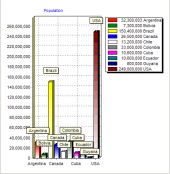
MaxDB Maestro: You can view your MaxDB data as a chart with a possibility to export it to an image file.
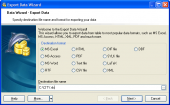
MaxDB Maestro provides an ability to export your data to any of 14 available data formats.
|
|











 Download
 Buy
Buy