







 Partners



 Download
 Buy
BuySQLite Maestro online Help
| Prev | Return to chapter overview | Next |
Fields

Table columns are created and edited within the Field Editor.

To add a new table column, you should either:
or
or
|
Table fields are edited within the Field Editor dialog window. In order to open the dialog you should either
or
You can change the name of the field using the Rename Field dialog. To open the dialog you should either
or
|
To drop the table field:
or
and confirm dropping in the dialog window.
|
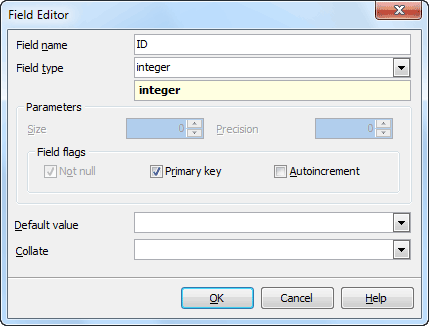
To specify the Data Type, select it from the drop-down list.
Note: the name of the object must be unique among all the object names in the table. You can use any identifier that is allowed by SQLite server.
Parameters
Use the Size edit box to define the length of the field value for integer, float, char and other data types and use Precision to define the precision of the field value, e.g. for float data type.
Field flags
 Not Null
Forbids the NULL values for the field.
Primary Key
With this option checked the field becomes the only field with a primary key. If you check this field, you will not be able to set this attribute for any other field in the table. Hence if you want to create a compound primary key, do not check this field but create a primary key through the Indexes tab of Table Editor or the appropriate step of Create Table Wizard.
Autoincrement
If this option is checked then whenever you insert a NULL into this column of the table, the NULL is automatically converted into an integer which is one greater than the largest value of this column over all other rows in the table, or 1 if the table is empty. Autoincrement is not allowed on WITHOUT ROWID tables or on any table column other than INTEGER PRIMARY KEY. To learn more about the implementation of autoincrement columns in SQLite, see the SQLite documentation.
Collate
Establishes the default sorting behavior for the column.
Unique constraints are added on the Indexes tab.
Default value
Within the box you can assign a default value for the field column. The action is optional. If the default value was specified during the new row created and no values is specified for some of the columns, the columns will be filled with their respective default values.