Subscribe to our news:

 Partners
Customers
|
SQLite Code Factory online Help
Create a database profile
In SQLite Code Factory database profiles are created within Create Database Profiles Wizard. In order to run the wizard you should either
| • | select the Database | Create Database Profiles... main menu item |
or
| • | use the Create Database Profiles... item of the popup menu. |
Using Create Database Profiles Wizard set the necessary connection and authorization options and click the Ready button to complete the operation.
|
News 
Apr 10, 2017
New version features colored tabs, new encryption algorithms in data grids, enhanced data input forms, updated data export/import tools and a lot of other useful things.
Sep 20, 2013
New version comes with keyboard interactive SSH authentication, updated Script Runner, redesigned start page, improved SQL editors and data grids, as well as with many other useful things.
Mar 5, 2012
New version introduces Unicode support in editors, updated code folding appearance, viewing BLOB data as PDF, data import from ODBC data source, Spanish translation and a lot of other new features.
Feature of the day
SQLite Code Factory allows you to represent numeric data from a query result as a diagram with a possibility of customizing its appearance and export the diagram to the following formats: BMP, Windows metafile, PDF, JPEG, PNG and more.
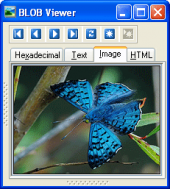
Using SQLite Code Factory you can view or edit BLOB data in the following ways: hexadecimal dump, plain text, graphical image or HTML page.
|
|











 Download
 Buy
Buy