






 Partners




 Download
 Buy
BuyMS SQL Maestro online Help
| Prev | Return to chapter overview | Next |
Managing table data

The Data tab displays the table data as a grid or as info cards (see Data View for details). To edit/add a table record, use Data Input Form or type the new data directly in the grid (card). To export/import/get SQL dump of the table data, invoke corresponding modules from the grid's popup menu. To view and edit the content of BLOB columns, run BLOB Editor.
Lookup editors
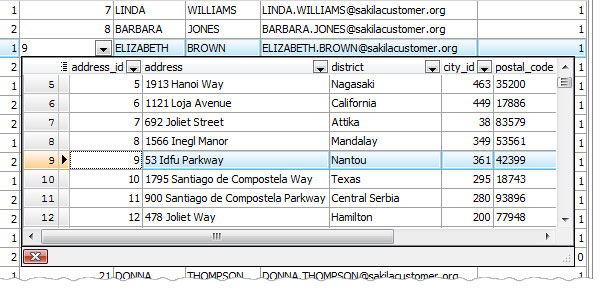
Lookup editor displays the content of parent table’s columns within the drop-down window. MS SQL Maestro enables a lookup editor for a column linked by a foreign key with a single column from another table. To get the corresponding data, double click the field or use F2 shortcut and press Alt+Down Arrow Key.
Master-Detail Data View
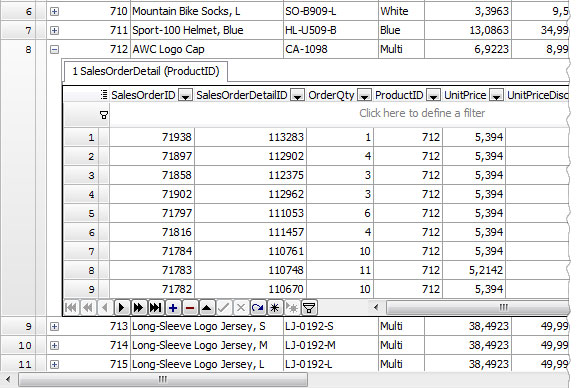
To get data in the master-detail view mode (multiple detail pages are displayed for a single master row), use the Show/Hide details link at the editor’s navigation bar. This mode allows you add/edit/delete data of detail pages. To open/close the appropriate detail page click the +/- icon or use +/- shortcuts.
Import from Clipboard
MS SQL Maestro supports data import from clipboard. It is supposed that columns within the data block are separated by the tabulation symbol, records are separated by newlines and the first line of the data block contains column headers.
Example:
ColHeader1 ColHeader2
R1C1 R1C2
R2C1 R2C2
The same data format is supported by a lot of other applications, so the ability allows you to copy data from MS Excel, another table or view, or even from a data set from a different DBMS especially if it is opened with an appropriate our product.
Uploading files as BLOBs
MS SQL Maestro allows you to upload files as BLOBs into a table. For this purpose the file names must contain the information on the record they need to be placed to: the files need to be named in the same manner and include content of one or several table columns that can uniquely identify each row. To import files, specify the file name template using filed name tags (i.e. %id%, %user%, where 'id' and 'user' are the fact table columns). You can also set the default file to be uploaded to NULL fields.
Example:
Suppose we have a table 'employee' with Non-Blob data as follows:
Id User
1 Max
2 July
And we need to import the 1.jpg and 2.jpg files to a BLOB column of the table. The files are stored in the "D:\Images" directory. In this case we need to specify the "D:\Images\%Id%.jpg" file name template.
| Prev | Return to chapter overview | Next |