







Wählen Sie Ihren SQL-Server:
AnySQL
MySQL
MS SQL Server
Oracle
PostgreSQL
SQLite
Firebird
SQL Anywhere
DB2
MaxDB

Neuheiten abonnieren
Partners
Testimonials
Daryl Joubert: "I am evaluating your PostgreSQL Maestro product for purchase by my company and thus far I am very impressed! I really like the easy, intuitive and productive user interface and feature set. I am also evaluating a number of other products for PostgreSQL database design and maintenence but thus far SQLMaestro stands head and shoulders above the rest".
Andrew Maclean: "I am really quite impressed with the software. You and your people are doing a wonderful job. I actually have spent a while researching PostgreSQL admin/code generators and yours seems to fit our needs nicely. Your interface is beautiful".

More

Add your opinion

PostgreSQL Maestro online Help

Prev Return to chapter overview Next

Foreign Key References

A foreign key specifies that the values in a column (or a group of columns) must match the values appearing in some row of another table. The Foreign Key References tab allows you to manage foreign keys created in other tables and reference for columns of the current one. Table objects are managed within the corresponding tab of Table Editor. Unlike tables or views, Foreign Key References are actually not database objects. These are only references to foreign keys. They are designed specially for easy foreign keys management.
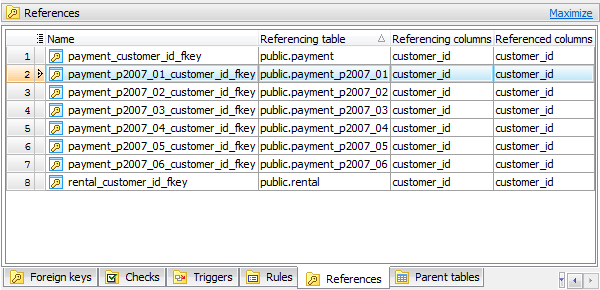
 

See also: Foreign Keys


Table foreign key references are edited within the Foreign Key Editor dialog window. In order to open the dialog you should either


open the table in Table Editor;
open the Subitems item and the Foreign Keys References tab there;
press Enter key or select the Edit Foreign Key item from the popup menu

or

select the foreign key to edit in the appropriate table group of the explorer tree and use the Edit Foreign Key popup menu item.


Table foreign key references are edited within the Foreign Key Editor dialog window. In order to open the dialog you should either


open the table in Table Editor;
open the Subitems item and the Foreign Keys References tab there;
press Enter key or select the Edit Foreign Key item from the popup menu

or

select the foreign key to edit in the appropriate table group of the explorer tree and use the Edit Foreign Key popup menu item.


To drop the foreign key reference:


open the table in Table Editor;
open the Subitems item and the Foreign Keys References tab there;
press Delete key or select the Drop Foreign Key item from the popup menu;

or

select the foreign key to drop in the appropriate table group of the explorer tree and use the Drop Foreign Key popup menu item.


and confirm dropping in the dialog window.


Prev Return to chapter overview Next
